Rules, step by step
Rules send each enquiry to the right people and tools. Choose what to look for, choose who gets it, then choose "Only these" or "These as well".
Updated 19 Nov 2026
Rules decide where each enquiry goes. You set them up in Setup, in the Rules step. The Help tips button on that page opens these tips beside your rules.
Set up a rule in three steps
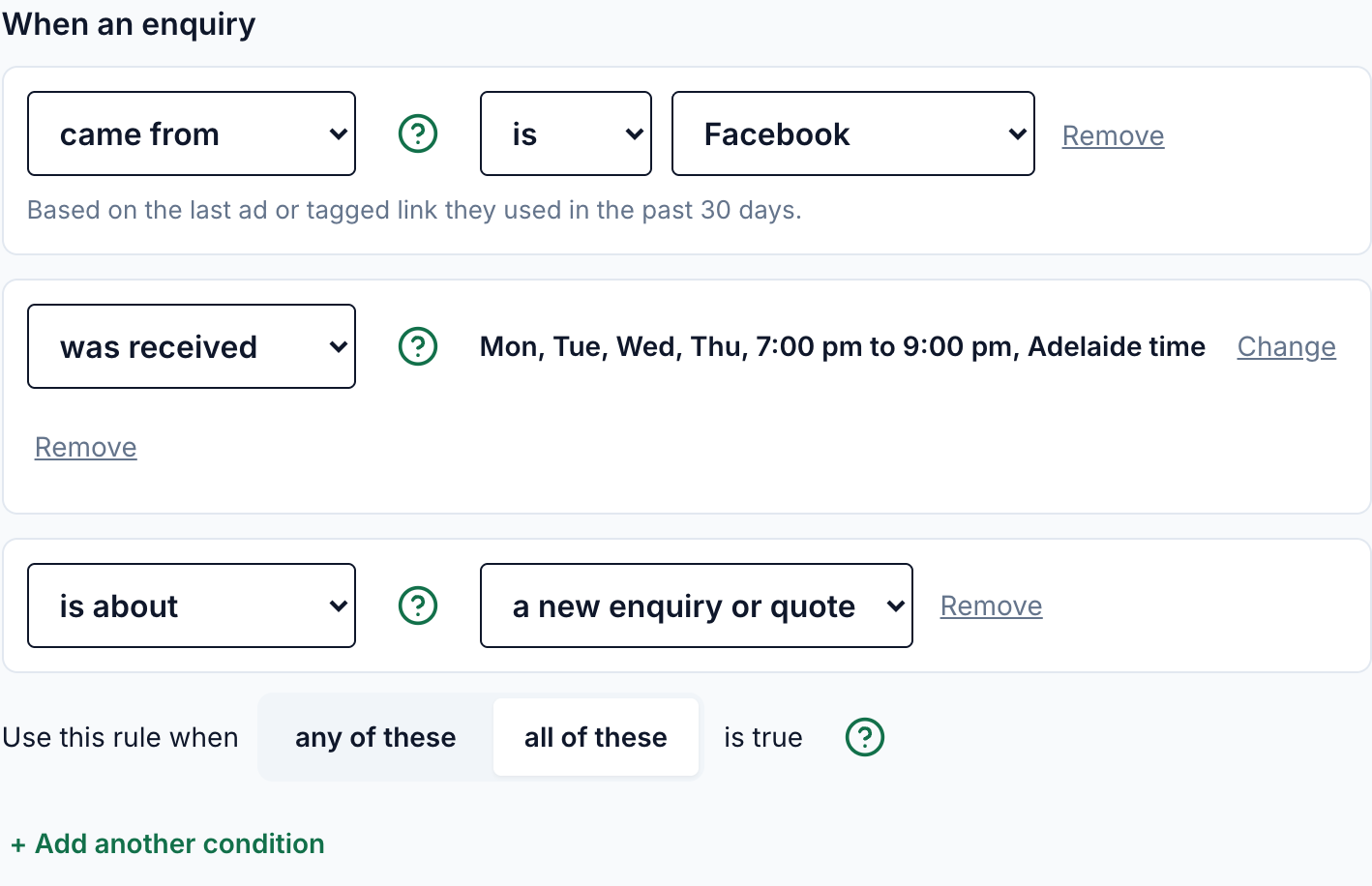
Choose what to look for. Under When an enquiry, pick a condition, such as was received between 7 pm and 11 pm.
Choose who gets it. Under Send it to, add a person (email, text or both) or a connection such as Zapier, n8n or your CRM.
Choose "Only these" or "These as well". Only these means just the people and connections on this rule get the enquiry, and Every other enquiry does not. These as well means they get it on top of whoever else would.
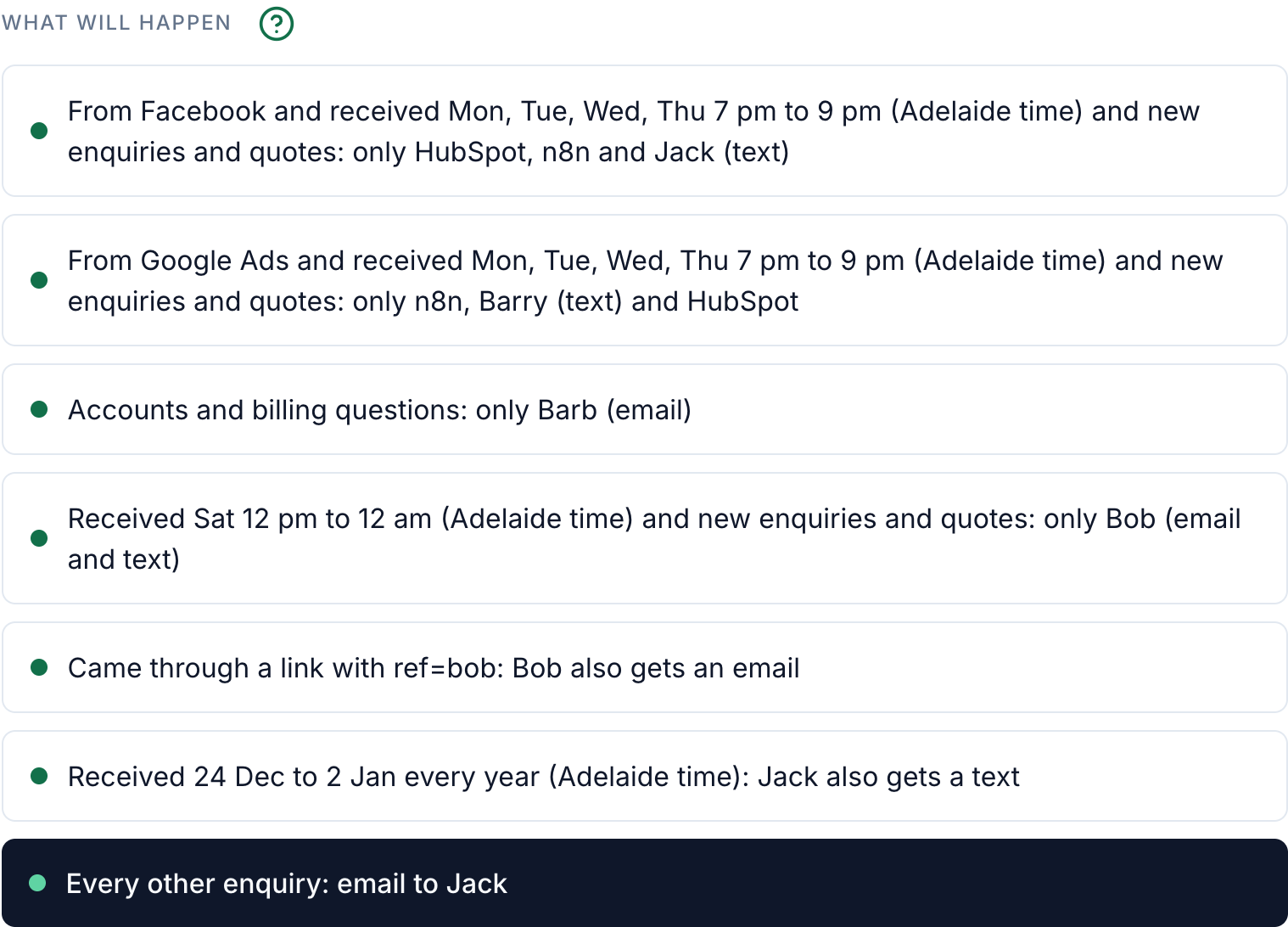
Then read What will happen at the bottom of the page. It says in plain words where each kind of enquiry will go.


The conditions
is about: Trevilo reads the message and works out what it is about, such as a booking, a quote, a complaint or accounts. For example: bookings go to your office manager. Needs the Smart or GrowthPlus plan.
mentions any of: matches when the message contains any of your words, separated by commas. For example:
leak, urgent, burst. Words match whole words and ignore capitals, so add each form of a word you want to catch.was received: matches by the time the enquiry arrives, in your time zone. Choose the days, a time range, and if you like a date range such as 24 Dec to 2 Jan. A time that ends earlier than it starts runs past midnight: 10 pm to 2 am on Friday covers early Saturday. Choose outside to match everything except those times.
came from: matches how the visitor found you: Google Ads, Google search, Facebook, Instagram, TikTok, an email you sent, another website, or direct. Trevilo remembers the last ad or tagged link they used for 30 days.
location: matches where the enquiry is from: a country, a state, or a postcode range such as 5045 to 5045. Trevilo reads it from a postcode or state field on your form, or from a postcode at the end of an address field ("12 Jetty Rd, Glenelg SA 5045"). If no postcode or state is found, a location rule does not match, so the enquiry goes to your other rules or to Every other enquiry. Australia and the US. Needs the Smart or GrowthPlus plan.
link value: matches a value in the link they clicked, or a field in your form. Use the campaign tags (
utm_source,utm_campaignand the rest), the referring website, or a name of your own (see below).
A rule can have more than one condition. Choose any of these (one is enough) or all of these (every one must be true).
Your own link values
Give a link an ending of your own, then route on it. For example, print a flyer with yoursite.com/?ref=bob and add a rule link value, ref is bob, sent to Bob.
Add a name from a rule (+ Track a new link value) or on the Websites page under Link values we keep. Up to 10 names.
Trevilo looks for each name in the page address and in the form, including hidden fields. A value in the form wins over one in the link.
A value from a link is kept for 30 days, across every page the visitor opens.
Names that look private, such as email, token or password, are refused.
Every enquiry, as well
Everything you add here gets every enquiry, on top of whoever else gets it. Good for a Google Sheets log, your CRM, or a manager who wants a copy of every enquiry. Each text and each connection delivery uses 1 credit.
Every other enquiry
Your safety net. Anything no Only these rule takes comes here, so no enquiry is missed. It is always on, and you can change who is on it.
How Trevilo decides
Trevilo checks every rule against the enquiry.
If an Only these rule matches, the enquiry goes to that rule's people and connections, and Every other enquiry does not get it.
If none matches, the enquiry goes to Every other enquiry.
Every matching These as well rule sends too, in either case.
A few details:
Every matching rule sends, not just the first one.
A person gets each enquiry once by email and once by text at most, however many rules include them.
Trevilo only sends to an email or mobile once it has been confirmed. See Confirming recipients.
A rule whose people have not confirmed yet, and with no working connection, does not count as a match, so the enquiry is never left with nowhere to go.
Common setups
Text someone after hours: was received, 7 pm to 11 pm. Send it to the on-call phone by text. Choose These as well.
Ad enquiries to your sales team: came from, Google Ads. Send it to your sales team. Choose Only these.
Track a flyer or referral link: link value, ref is bob. Send it to Bob. Choose These as well.
Keep a log of every enquiry: no rule needed. Add your Google Sheet or CRM to Every enquiry, as well.
Urgent words to your mobile: mentions any of,
leak, urgent, burst. Send it to you by text. Choose These as well.
Texts
When a rule texts someone, choose the format:
Summary: who it is and what they need, with a link to the full enquiry. 1 credit.
Full enquiry: everything the visitor typed, up to 420 characters. Up to 3 credits.
What each plan includes
Launch: keyword, time, came from and link value rules, email, and connections.
Smart and GrowthPlus: everything in Launch, plus rules by what the enquiry is about, location rules and texts.
To try your rules, send a test from the last step of Setup. See Send a test enquiry.